


Before you dive in: I just launched ShareByLight—transfer files with light only. No Wi-Fi, no Bluetooth, no cables. One device shows a stream, the other reads it with the camera. Free on iPhone, iPad, and Mac.
2025 Update: While there is some historical benefit in keeping this content, to show my journey, a lot of things changed in this are since I published this post. Check out my most recent approaches:
I started to use Mac Journal 2 years ago. Initially I was using it only for my journaling activities. I needed something a little more versatile than my plain text file structure, and with some searching facilities integrated. Fortunately, Mac Journal proved to have all this, and even more. I soon discovered that I can remotely publish to my blogs from within Journal, download posts into it (for backup or just convenience) and brainstorm my future posts.
During the past few months, since I decided to make from blogging my main activity – after selling my online publishing business – I started to use Journal intensively. In this post I’ll share how I use Mac Journal for blogging, how I set up my blogging environment and how I applied, using Mac Journal’s powerful “smart journals” feature, a GTD-like blogging scaffold.
Setting Up A Remote Blog From Within Mac Journal
This is not a mandatory step, as you can always use your online blogging admin interface, but it might be of interest. You can add a blog to your journal by selecting the option “Edit blog server” from the “Journal” menu. A pop-up with some simple options will appear. If you’re on a wordpress set up, as most of the people, you should check the “Movable Type” type of your publishing method. A good idea is to add “xmlrpc.php” to your post URL and the admin username. That’s it, you’re now connected to your blog and can start publish remotely. You can even download the entries from your blog into Mac Journal, by choosing “Download entires from blog…” from the same “Journal” menu. Of course, you can have more than one blog set up, if you have more than one.
Establish Your Blogging Habits
Mac Journal lets you apply some sort of meta data to your posts. That will not be transferred to your blog, but it’s a convenient way to organize your blogging habits. Some of that meta data is: status, priority and ranking. There are also others like: tags, annotations or even colored label, if you want, which can be used for some neat visual effects. Let’s see how we can use this meta data in order to set up a more productive blogging environment.
First of all, you need a congruent blog routine for this to work. If you’re going to use this on a daily basis, you have to establish some rules for your idea brainstorming or future posts. My data input set up is like this: whenever I add an idea for a post, I also add the status, which is most of the time “Not Started”, for ideas that are just popping out of my head, the priority, which can be any number from 1 to 5, and a rating and color label (this is only for internal auditing purposes).
The priority number is used for slipping up posts into “Next Posts” and “Someday / Maybe” posts and it uses a 3/4 threshold. Meaning any priority between 1 and 3 (inclusive) will go on the “Someday / Maybe” posts, and any priority between 4 (inclusive) and 5 will go into “Next Posts”. “Someday /Maybe” and “Next Posts” are smart journals. And they can get really smart, you’ll see. The rating and label are just metrics for auditing my blog activity. With a color label I can see at a glance how many working post I have, how many published, and so on.
Set Up Your GTD Environment
I know you’re eager to find out how we can do this, but take some time to relax and first clean up the work environment. First, let’s customize the info bar. And that would be the real estate between the entries list on the right pane  and the entry body. You first have to make it visible, by clicking on “Show Info Bar” menu entry under the “View” menu item. And then, customize it by clicking on the “Customize Info Bar” under the same menu item, “View”. Here is how my info bar customizing screen looks like (click to enlarge):

As I told you, I only keep the topic title, the label, the status combo box, the priority combo box and the rating stars. Whenever I add a future subject I ad the status (“Not Started”), a priority (4 to 5 for important subjects, and 1 to 3 for subjects that I intend to write about later) a colored label, and a rating. Whenever I complete a post, I change the status to “Completed”. And here’s how the actual info bar looks after customization:

Now that we have the adding policy in place, let’s start do some GTD optimizations.
We’ll add two smart journals under the www.dragosroua.com journal set up in my Mac Journal. Right click on your journal and chose “New Smart Journal” option from the drop-down menu. The nicest thing about smart journals is that you can add filtering conditions to them, to select what they will actually contain. In this case, I will have only posts with priority bigger or equal to 4, and status different from “Completed”. Here’s how to do it:
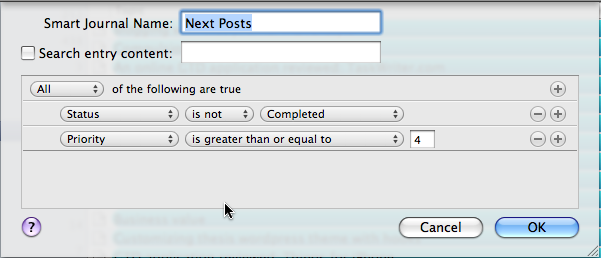
So, from now on, on the smart journal “Next Posts” under the www.dragosroua.com journal, I will only have posts that I should complete, with a priority greater than 4. Cool, right? But how about the “Someday /Maybe” journal? Oh, it will contain only posts with priority equal or under 3, and status “Not Started”. Which seems pretty logical to me (click on the picture to enlarge):

As you can see, we do have quite a GTD set up here: all the possible, “next actions” posts are in one place, so we can focus only on the important stuff (priority 4-5), and we have all the unimportant, or someday / maybe posts (1 to 3 priority) in a separated journal. If you haven’t noticed so far, all the posts are added into the main www.dragosroua.com journal, and then pulled into “Next Posts” and “Someday / Maybe” smart journals using 2 simple rules. The main www.dragosroua.com journal act as a sort of “main review” for all the blogging activities we have.
Journaling The Smart Way
Now that we had a peek into the smart journaling, I bet you wanna do more. Of course you can, if you ask me. I wrote earlier about some sort of auditing of my blogging activities. How I do this? I use a smart journal for all my GTD-related posts for instance, so I can always see how my GTD posting is evolving, how many posts I have, what are the topics, and so on. Here how the smart journal for GTD is done (click for larger image):

Notice the fact that you can set up a smart journal by searching all the entries in the main journal for specific words, in our case, “GTD”. But one can go even further and have a smart journal for all the completed posts, namely the posts with the “Completed” status enabled. You can actually do whatever you want using this very powerful, but somehow hidden functionality of Mac Journal. In the end, here is how the smart journals we defined are aligned under the main www.dragosroua.com journal (click to enlarge):

Other Resources
The most important place for Mac Journal is Mariner Software website, especially the Mac Journal section and the company blog.
I really hope this small tutorial of putting together some GTD flavor and a powerful piece of software for a more productive environment was useful.
I've been location independent for 15 years
And I'm sharing my blueprint for free. The no-fluff, no butterflies location independence framework that actually works.
Plus: weekly insights on productivity, financial resilience, and meaningful relationships.
Free. As in free beer.